This method allows the drive to spin down when not in use to save power and reduce noise.
Open the
Control Panel and select
Power Options.
Click Change plan settings next to your active plan.
Click Change advanced power settings.
Expand Hard disk - Turn off hard disk after.
Set the time (in minutes) for "On battery" and "Plugged in". Setting it to 0 or Never prevents it from turning off.
Method 2: Disable/Enable Hard Disk in Device Manager
This completely disables the drive in Windows, useful if you have multiple drives and want one off.
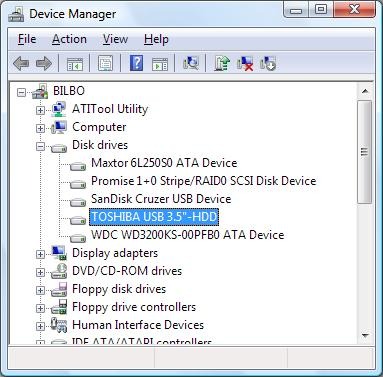
1...Right-click the Start button and select Device Manager.
2...Expand the Disk drives section.
3...Right-click the specific HDD and select Disable device to turn it off.
4...To turn it on, right-click the disabled drive and select Enable device.
;;;;; ;;;;;
Data Loss Risk: Using Device Manager to disable a drive while it is in use may cause data loss or system instability. Ensure no applications are accessing the drive.
Spin Down: Setting a time in Power Options is safe; the drive will automatically turn back on when you access it (with a slight delay).
External Drives: External drives can be safely removed, which spins them down, or managed via these same software methods