|
|
TIPS, HELP, RESCUE, HOW?... | How to enable Windows 11's hidden 'End Task' feature to quickly kill crashed apps ...
|
|
|
 July 30, 2024 July 30, 2024 |
 577 views, 577 views,  0 comments 0 comments |
HOWTO| How to enable Windows 11's hidden 'End Task' feature to quickly kill crashed apps ...

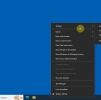
Windows 11 offers a ton of hidden features that are still unknown to the vast majority of users. One such function is a handy 'End Task' option that can be accessed by right-clicking on an app's taskbar icon. This is a great little feature, and one that can make it easy to quickly and effortlessly close an application if it crashes, freezes, or starts misbehaving.
Unfortunately, this functionality is disabled by default, and has to be manually turned on from the settings menu. Thankfully, the process is fairly easy, and it can be done in a few simple clicks. Here's how you can enable the 'End Task' right-click option on an app's taskbar icon:
- Open Windows 11 settings, either by using the Win+I keyboard shortcut or by clicking on the 'Settings' option in the Start Menu.
- Click on 'System' in the left pane of the Settings page.
- Now select the 'For developers' option in the right pane.
- Finally, scroll down and toggle on the 'End task' option.
The feature will be enabled immediately, and you'll be able to access it by right-clicking on the taskbar icon of any app to end that task. In the odd chance you don't like the feature, you can always retrace your steps and disable it from the developer options.
This new feature is a great addition to Windows 11, especially for people using alpha or beta apps for testing purposes. As these could crash often without any warning, the End Task feature can function as a convenient kill switch that helps users shut down errant applications without having to open Task Manager.
That being said, some apps and games can freeze or crash even before an icon appears on the taskbar, so the new feature may not be of any help in such cases. If you encounter such an app or process, you'll still have to end it the old-fashioned way by opening Task Manager using the alt+ctrl+esc keyboard shortcut, right-clicking on the errant process, and then selecting the 'End Task' option in the pop-up menu.
|
 Comments 0 Comments 0
There are no comments ......
 Note: Note:
Guests comments are allowed ...
|
|
|
|
|
|
|
|
|
|
|
|
|
|
|
|
|
|
|
|
|
|
|